
Effective Documentation with Markdown and Git

Effective Documentation with Markdown and Git

Documentation is the unsung hero of software projects. Good documentation reduces onboarding time, prevents recurring questions, and ensures that knowledge survives team changes. Treating documentation as code — writing it in Markdown, storing it in Git, and building it with CI — ensures it stays versioned, reviewed, and up to date. This article covers the docs-as-code workflow using MkDocs and Material for MkDocs, along with strategies for keeping documentation fresh.

Markdown for Documentation

Markdown is the lingua franca of documentation. It is plain text that is readable in any editor and renders to clean HTML. Most documentation generators (MkDocs, Hugo, Docusaurus, Jekyll) support GitHub-Flavored Markdown with extensions for tables, code blocks with syntax highlighting, task lists, admonitions (notes, warnings, tips), and mathematical formulas via LaTeX. Keep paragraphs short, use descriptive headings (every heading level creates a navigation entry), and include code examples for every API function or configuration step. A documentation page should answer three questions: what does this do, why would I use it, and how do I use it? Start each page with a brief summary of what the page covers and who it is for.

# mkdocs.yml - Project configuration
site_name: My API Documentation
site_description: Developer docs for the MyAPI service
theme:
  name: material
  features:
    - navigation.tabs
    - navigation.sections
    - navigation.expand
    - content.code.copy
    - content.code.annotate
  palette:
    - scheme: default
      primary: indigo
      accent: indigo

nav:
  - Home: index.md
  - Getting Started:
    - Installation: guides/installation.md
    - Quickstart: guides/quickstart.md
  - API Reference:
    - Authentication: api/auth.md
    - Users: api/users.md
    - Orders: api/orders.md
  - Guides:
    - Deployment: guides/deployment.md
    - Troubleshooting: guides/troubleshooting.md

markdown_extensions:
  - admonition
  - pymdownx.details
  - pymdownx.superfences
  - pymdownx.tabbed
  - pymdownx.highlight

Organizing Your Documentation with Diátaxis

The Diátaxis framework divides documentation into four types, each serving a different user need. Tutorials are learning-oriented — step-by-step guides that take a beginner from zero to a working result, with no assumptions about prior knowledge. These should be the first thing a new user encounters. How-to guides are task-oriented — recipes for solving specific problems (how to deploy, how to reset a password, how to configure caching). Users reach for these when they have a specific goal. Reference docs are information-oriented — exhaustive descriptions of APIs, configuration options, and command-line flags. These should ideally be generated from code to stay in sync. Explanation is understanding-oriented — conceptual background, design decisions, architecture overviews, and comparisons with alternatives. A healthy documentation site has content in all four categories with clear navigation.

Automated Documentation Builds

Set up a CI pipeline that rebuilds the documentation site on every push to the main branch. MkDocs produces a static HTML site that can be deployed to GitHub Pages, GitLab Pages, Netlify, or any web server. For GitHub Pages, use mkdocs gh-deploy --force which builds the site and pushes it to the gh-pages branch. Add a pre-commit hook to check for broken links and validate Markdown syntax. For API documentation generated from code (like OpenAPI specs), integrate the spec generation into the build so the docs always match the current code.

# Build and preview locally
mkdocs build
mkdocs serve  # visit http://localhost:8000

# Deploy to GitHub Pages
mkdocs gh-deploy --force

# GitHub Actions workflow for automated docs
name: Build and Deploy Docs
on:
  push:
    branches: [main]
jobs:
  build:
    runs-on: ubuntu-latest
    steps:
      - uses: actions/checkout@v4
      - uses: actions/setup-python@v5
        with:
          python-version: '3.12'
      - run: pip install mkdocs-material
      - run: mkdocs build
      - uses: peaceiris/actions-gh-pages@v3
        with:
          github_token: ${{ secrets.GITHUB_TOKEN }}
          publish_dir: ./site

Keeping Documentation Fresh

Outdated documentation is worse than no documentation — it actively misleads users and erodes trust. Set up automated checks in CI that test code examples from documentation (using doctest or a custom script that extracts and runs code blocks in isolation). Track documentation updates as part of your definition of done for each feature: no feature is complete until its documentation is updated. Assign a documentation rotation on your team where someone spends 10% of their time reviewing and updating docs each sprint. Add a simple feedback mechanism — a “Was this page helpful? Yes/No” widget at the bottom of each page — to identify pages that need attention. When a page gets consistent negative feedback, prioritize it for rewriting. Track documentation debt alongside technical debt in your issue tracker so it gets the attention it deserves.

Writing Style and Conventions

Use active voice and direct address (“You can configure the API by editing the config file” not “The API can be configured”). Write in present tense. Use consistent terminology throughout — if you call it a “workspace” in one place, do not call it a “project” in another. Include one concept per paragraph. Use bullet points for lists of items and numbered steps for procedures. Keep code examples concise and focused on the point being illustrated — do not include irrelevant boilerplate. Every code example should have a comment or surrounding text showing the expected output. Use screenshots and diagrams sparingly but deliberately — a well-placed architecture diagram communicates in seconds what text takes paragraphs to explain.
Open Data Kit (ODK) and Using It with Google Sheets

What is Open Data Kit (ODK)?

Open Data Kit (ODK) is a free and open-source suite of tools designed for mobile data collection in offline, remote, and resource-constrained environments. Developed originally at the University of Washington, ODK has become the de facto standard for field data collection in humanitarian aid, global health research, environmental monitoring, and agriculture.

ODK Collect: The Android Face of Field Data

ODK Collect is the Android application that field enumerators use to fill out forms and submit data. It works completely offline — forms are downloaded once, filled in the field without internet, and submitted when connectivity returns. Collect supports GPS location capture, barcode scanning, image and audio attachments, repeat groups, skip logic, and complex validation rules.

ODK Central: The Server Engine

ODK Central is the modern server component. It provides a RESTful API for managing form definitions, receiving submissions, and accessing collected data. Central supports user authentication, permissions, encryption, and auditing. Submissions are stored in PostgreSQL and can be browsed, exported (CSV, JSON, GeoJSON), or pushed to external endpoints via webhooks.

Designing Forms with XLSForm

XLSForm is a spreadsheet-based format for defining ODK forms. You create a workbook with columns for type, name, label, hint, and required. A survey sheet defines the questions and a choices sheet defines select options.

| type          | name         | label                      | required |
|---------------|-------------|----------------------------|----------|
| text          | enumerator   | Enumerator name            | yes      |
| date          | visit_date   | Visit date                 | yes      |
| select_one hh | hh_type      | Household construction     | yes      |
| integer       | family_size  | Number of family members   | yes      |
| geopoint      | location     | GPS coordinate             |          |
| image         | photo        | Take a photo               |          |
| list_name | name       | label          |
|-----------|-----------|----------------|
| hh        | thatch    | Thatch roof    |
| hh        | tin       | Tin roof       |
| hh        | concrete  | Concrete roof  |

Integrating ODK with Google Sheets

There are two proven approaches for automatically pushing ODK submissions into Google Sheets.

Approach 1: ODK Central Webhook + Google Apps Script

ODK Central can fire a webhook (HTTP POST) for every new submission. Set the webhook URL to a Google Apps Script deployment, and the script inserts a row into Google Sheets.

Step 1: Open a Google Sheet, go to Extensions > Apps Script, and paste:

function doPost(e) {
  var sheet = SpreadsheetApp.getActiveSpreadsheet().getActiveSheet();
  var data = JSON.parse(e.postData.contents);
  var row = [
    data.instanceId,
    data.submissionDate,
    data.enumerator || "",
    data.visit_date || "",
    data.hh_type || "",
    data.family_size || "",
    data.location || ""
  ];
  sheet.appendRow(row);
  return ContentService
    .createTextOutput(JSON.stringify({ success: true }))
    .setMimeType(ContentService.MimeType.JSON);
}

Step 2: Deploy as a Web App (Deploy > New Deployment, choose Web app).

Step 3: In ODK Central, go to Webhook Configurations and add a new outgoing webhook pointing to the Apps Script URL with method POST and event Submission.created.

Approach 2: Using n8n or Apify

If you prefer a visual workflow, n8n can schedule a workflow that fetches submissions from Central’s API and uses a Google Sheets node to append rows. This approach is easier to monitor and debug through a visual UI.

Real-World Use Case

A public-health NGO conducts a baseline survey across 200 villages. Enumerators carry Android phones with ODK Collect. Forms include household demographics, GPS location, and photos. Connectivity is intermittent.

Without ODK: paper forms, manual double-entry, weeks of delay. With ODK: offline collection, automatic submission via webhook to Google Sheets, real-time monitoring dashboards in Looker Studio, all without touching a database.

Best Practices

Use API tokens (not passwords). Validate on both sides — enforce constraints in the form and handle missing fields gracefully in the script. Monitor webhook delivery logs in Central. For repeat groups, flatten them or write each instance to a separate sheet row keyed to the parent submission.

Conclusion

ODK and Google Sheets form a powerful, low-cost data pipeline bridging offline field collection and cloud collaboration. With ODK Collect on Android, ODK Central as the server, XLSForm for forms, and a webhook-backed Google Apps Script, you go from a rural village to a live dashboard in seconds.

Advanced ODK Workflows

Beyond basic form collection, ODK supports complex workflows: repeated groups (collect multiple observations per encounter), external secondary instances (load dropdown options from CSV files), complex skip logic (hide/show questions based on multiple conditions), calculated fields (auto-compute age from date of birth), and multimedia capture (photo, audio, video, barcode scanning). ODK Collect supports offline data collection with automatic submission when connectivity is restored. The ODK Central API supports webhook integrations that trigger external workflows on form submission (send SMS alerts, update dashboards, push to HMIS). ODK’s XLSForm standard (Excel-based form design) makes form creation accessible to non-programmers while producing valid XForms.

Empowering Developers for Seamless Collaboration with GitHub Tools

Empowering Developers for Seamless Collaboration with GitHub Tools

GitHub has evolved from a Git hosting service into a comprehensive developer platform offering issue tracking, CI/CD (GitHub Actions), package registry, code scanning, project management, and wiki documentation. These integrated tools streamline the entire software development lifecycle within a single interface, reducing context switching and enabling seamless collaboration for distributed teams.

GitHub Issues and Project Management

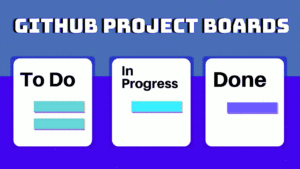
GitHub Issues track bugs, feature requests, and tasks with labels, assignees, milestones, and linked pull requests. The modern issue experience includes issue templates (standardized formats for bug reports and feature requests), issue forms (structured YAML-defined forms with validation), and task lists within issues for tracking sub-tasks. GitHub Projects provides a Kanban-style board that automatically syncs with issues and PRs, supporting custom workflows with status fields, iterations, and insights dashboards. Automations can move cards between columns based on label changes, PR merges, or scheduled dates, reducing manual board management.

# Using GitHub CLI to manage issues
gh issue create --title "Add dark mode" --body "Users have requested a dark theme..."   --label enhancement --assignee @me --project "Q3 Sprint"

gh issue list --label bug --assignee @me
gh issue view 42  # View issue details in terminal

# Link PR to issue automatically (mention in PR description)
# Closes #42 — PR will auto-close the issue when merged

GitHub Actions for CI/CD

GitHub Actions provides workflow automation triggered by GitHub events (push, PR, schedule, issue creation). Workflows are YAML files in .github/workflows/ that define jobs running on GitHub-hosted or self-hosted runners. Each job consists of steps that can run commands or use pre-built actions from the Marketplace. Common workflows include running tests on every push, deploying to cloud platforms on merge to main, publishing packages to npm or Docker Hub on version tags, and scheduled tasks like dependency updates or database backups.

# .github/workflows/ci.yml
name: CI
on: [push, pull_request]
jobs:
  test:
    runs-on: ubuntu-latest
    steps:
      - uses: actions/checkout@v4
      - uses: actions/setup-python@v5
        with: { python-version: "3.12" }
      - run: pip install -r requirements.txt
      - run: pytest --cov=src --cov-report=xml
      - uses: codecov/codecov-action@v4
  deploy:
    needs: test
    if: github.ref == 'refs/heads/main'
    runs-on: ubuntu-latest
    steps:
      - uses: actions/checkout@v4
      - uses: superfly/flyctl-actions@1.5
        with: { args: "deploy" }
        env: { FLY_API_TOKEN: ${{ secrets.FLY_API_TOKEN }} }

Code Review with Pull Requests

GitHub’s pull request interface supports inline code comments, suggested changes (one-click accept), draft PRs (mark work-in-progress without triggering CI), and required reviewers with branch protection rules. Review assignment can be automatic (code owners file, load balancing round-robin). Conversation resolution tracks when comments are addressed. The Checks tab shows CI status directly in the PR. Merge queues (GitHub Merge Queue) automatically test PRs in batches before merging, ensuring main is always green even with concurrent merges. For security-sensitive projects, CODEOWNERS can enforce that specific files require review from designated teams.

Security Features

Dependabot automatically scans dependencies for known vulnerabilities (from GitHub Advisory Database) and creates PRs to update them. Secret scanning detects exposed credentials (API keys, tokens, passwords) in repositories and alerts the security team. CodeQL analysis runs static analysis on every push, finding security vulnerabilities (SQL injection, XSS, path traversal) and code quality issues. SBOM (Software Bill of Materials) generation outputs a machine-readable inventory of all dependencies, helping with supply chain security compliance. These security features, combined with mandatory 2FA enforcement and SAML/SSO for organizations, make GitHub a secure platform for enterprise development teams.

GitHub Actions Advanced Patterns

GitHub Actions supports matrices (running the same job with different OS or language versions), reusable workflows (calling a workflow from another workflow, avoiding duplication), environments (with approval gates and secrets scoped to deployment targets), and composite actions (bundling multiple steps into a reusable action). For monorepos, paths filtering triggers workflows only when specific directories change. The concurrency group prevents duplicate workflow runs on the same branch. Workflow commands allow creating annotations, setting outputs, and updating the job summary from within script steps. Artifact and cache actions speed up builds by persisting dependencies between runs. For self-hosted runners, autoscaling with actions-runner-controller on Kubernetes provides enterprise-level capacity management.

# Matrix testing across Python versions and OS
jobs:
  test:
    strategy:
      matrix:
        os: [ubuntu-latest, macos-latest, windows-latest]
        python: ["3.9", "3.10", "3.11", "3.12"]
    runs-on: ${{ matrix.os }}
    steps:
      - uses: actions/setup-python@v5
        with: { python-version: ${{ matrix.python }} }
      - run: pip install . && pytest

GitHub Pages and Documentation

GitHub Pages hosts static websites directly from repositories, supporting Jekyll, Hugo, and plain HTML. Project pages (served from a gh-pages branch or /docs folder) provide free documentation hosting with custom domain support and automatic HTTPS. Pages integrates with Actions: build your static site generator, deploy the output to Pages, and invalidate the CDN cache automatically. GitHub Wikis provide collaborative documentation that anyone with repository access can edit, with version history and search. For API documentation, GitHub’s support for OpenAPI/Swagger renders specification files directly in the repository view. Combined with the GitHub REST API and GraphQL API, you can automate documentation generation and maintain a project website without leaving the GitHub ecosystem.

Using Slack APIs for Workflow Automation

Using Slack APIs for Workflow Automation

Slack is the central communication hub for many teams, and its APIs turn chat messages into programmable events. You can build bots that respond to commands, send alerts from monitoring systems, automate approval workflows, and integrate with virtually any external service. This article covers the three main Slack API patterns: slash commands, incoming webhooks, and the Events API, with Python examples using the Bolt framework.

Slash Commands with Bolt

Slash commands let users trigger actions by typing a command in any Slack channel, like /deploy or /ticket. When a user types a slash command, Slack sends an HTTP POST request to your server with the command text, user info, and channel details. Your server processes the request and responds (within 3 seconds for synchronous responses, or use response_url for deferred responses). The Bolt framework for Python handles request verification, parsing, and response formatting.

# Install: pip install slack-bolt
from slack_bolt import App
from slack_bolt.adapter.socket_mode import SocketModeHandler
import os

app = App(token=os.environ["SLACK_BOT_TOKEN"])

@app.command("/deploy")
def handle_deploy(ack, command, client):
    ack()  # acknowledge command within 3 seconds
    env = command["text"].strip() or "staging"

    # Post a message to the channel
    client.chat_postMessage(
        channel=command["channel_id"],
        text=f"Deploying to {env}... :rocket:"
    )

    # In a real application, trigger a CI/CD pipeline here
    # and use response_url for the result

# Start the app
if __name__ == "__main__":
    handler = SocketModeHandler(app, os.environ["SLACK_APP_TOKEN"])
    handler.start()

Incoming Webhooks

Incoming webhooks are the simplest way to send messages to Slack from any system. You get a unique webhook URL that accepts a JSON payload describing the message. No authentication headers are needed — the URL itself is the secret. Webhooks are ideal for sending alerts from monitoring systems (Prometheus, Datadog, PagerDuty), CI/CD pipeline notifications (GitHub Actions, Jenkins), and any script that needs to notify a Slack channel.

# Send an alert from a shell script
curl -X POST -H 'Content-type: application/json'     --data '{
        "text": "*Build #42 passed!* :white_check_mark:",
        "attachments": [
            {
                "color": "#36a64f",
                "fields": [
                    {"title": "Branch", "value": "main", "short": true},
                    {"title": "Duration", "value": "3m 12s", "short": true}
                ],
                "footer": "CI Pipeline",
                "ts": 1712345678
            }
        ]
    }'     https://hooks.slack.com/services/T00/B00/xxxxx

# Python example
import requests
import json

webhook_url = "https://hooks.slack.com/services/T00/B00/xxxxx"
slack_data = {
    "text": "Deployment complete :tada:",
    "attachments": [{
        "color": "#FFA500",
        "title": "Deployment Summary",
        "fields": [
            {"title": "Version", "value": "v2.1.0", "short": True},
            {"title": "Environment", "value": "production", "short": True},
        ],
    }]
}
requests.post(webhook_url, json=slack_data)

Events API — Responding to Messages in Real Time

The Events API lets your app subscribe to events happening in Slack — messages posted, reactions added, files shared, users joining channels. When an event occurs, Slack sends your server a JSON payload. The Events API requires a publicly accessible HTTPS endpoint (use ngrok for development) and URL verification (Slack sends a challenge token that your server must echo back). The Bolt framework handles all of this automatically.

from slack_bolt import App

app = App(token=os.environ["SLACK_BOT_TOKEN"])

# React when someone says "help" in a channel
@app.message("help")
def say_help(message, say):
    say(
        blocks=[
            {
                "type": "section",
                "text": {"type": "mrkdwn", "text": "How can I help you?"}
            },
            {
                "type": "actions",
                "elements": [
                    {"type": "button", "text": {"type": "plain_text", "text": "Docs"}, "url": "https://docs.example.com"},
                    {"type": "button", "text": {"type": "plain_text", "text": "Support"}, "url": "https://support.example.com"},
                ]
            }
        ],
        thread_ts=message["ts"]  # reply in thread
    )

# Watch for emoji reactions
@app.event("reaction_added")
def handle_reaction(event, client):
    if event["reaction"] == "white_check_mark":
        # Auto-approve when someone adds a checkmark
        client.chat_postMessage(
            channel=event["item"]["channel"],
            text="Approved! :white_check_mark:",
            thread_ts=event["item"]["ts"]
        )

Interactive Components and Modals

Beyond simple messages, Slack supports interactive components: buttons, select menus, date pickers, and modals. When a user clicks a button in a message, Slack sends an interaction payload to your server. This enables rich workflows like approval requests (approve/reject buttons on a deployment notification), form submissions (a /vacation command opens a modal with date fields), and dynamic updates (a /poll command creates a message with vote buttons that update in real time). Interactive components use the same Bolt framework with @app.action() and @app.view() handlers for modals.

# Interactive approval workflow
@app.action("approve_deploy")
def handle_approval(ack, say, body):
    ack()
    user = body["user"]["name"]
    say(f":white_check_mark: Deployment approved by {user}")
    # Trigger actual deployment here

@app.action("reject_deploy")
def handle_rejection(ack, say, body):
    ack()
    user = body["user"]["name"]
    say(f":x: Deployment rejected by {user} — notify team")

Slack's APIs are well-documented and provide everything needed to build production-grade integrations. Start with incoming webhooks for simple notifications, add slash commands for user-triggered actions, and use the Events API for real-time bots that respond to activity in your workspace. The Bolt framework handles the HTTP plumbing so you can focus on your business logic.

Slack Bolt Framework for Python

The Slack Bolt Python framework simplifies building Slack apps with its familiar decorator pattern. The @app.command(), @app.message(), and @app.action() decorators register handlers for slash commands, message patterns, and interactive components. Bolt handles OAuth flow, request verification, and payload parsing automatically. The framework supports both socket mode (for development without public endpoints) and HTTP mode (for production behind a reverse proxy). Bolt's middleware system allows adding logging, rate limiting, and authentication checks to all handlers. Async support (Bolt with asyncio) handles high-volume Slack apps where multiple events arrive concurrently. The framework also supports workflow steps (custom functions for Slack Workflow Builder) and granular bot tokens for fine-grained permission scoping.

Git Basics: From First Commit to Collaboration

Git Basics: From First Commit to Collaboration

Git is the most widely used version control system, tracking changes in files across a distributed network of repositories. Unlike centralized systems (SVN, CVS), Git stores the complete history locally, enabling offline work, fast operations, and flexible branching models. This article covers the essential Git commands and concepts every developer must know.

The Three States and Basic Workflow

Git has three main states for files: modified (changed but not staged), staged (marked for the next commit), and committed (saved to the local repository). The working directory holds modified files, the staging area (index) holds staged changes, and the .git directory stores committed history. The basic cycle is: edit files in the working directory, use git add to stage changes, and git commit to save them to history. git status shows the current state, and git diff shows unstaged changes.

# Initialize a new repository
git init my-project
cd my-project

# Create and commit a file
echo "# My Project" > README.md
git status                    # Shows README.md as untracked
git add README.md             # Stage the file
git commit -m "Initial commit with README"
git log --oneline             # View commit history

Branching and Merging

Branches are lightweight pointers to specific commits. Creating a branch is instantaneous because Git simply creates a new pointer (41 bytes) rather than copying files. The default branch is named main (or master in older repositories). Feature branches isolate work until it is ready. Merging integrates changes from one branch into another—Git either fast-forwards (if there is no divergent work) or creates a merge commit (if branches have diverged). Merge conflicts occur when the same part of a file was modified in both branches and must be resolved manually.

# Branch workflow
git checkout -b feature/login   # Create and switch to new branch
# ... make changes, commit ...
git add . && git commit -m "Add login form"
git checkout main               # Switch back to main
git merge feature/login         # Merge feature into main
git branch -d feature/login     # Delete the feature branch

# Handle a merge conflict
# Edit the conflicted file to resolve
git add resolved-file.txt
git commit -m "Merge feature/login: resolved conflict"

Remote Repositories and Collaboration

Remote repositories (on GitHub, GitLab, Bitbucket) enable collaboration. git clone downloads a remote repository. git push uploads local commits, and git pull fetches and merges remote changes. git fetch downloads remote data without merging, giving you a chance to review changes before integrating. The origin remote is created automatically when cloning. Pull requests (GitHub) or merge requests (GitLab) are code review mechanisms built on top of Git’s branch model—they propose merging a feature branch into main after review and CI validation.

# Working with remotes
git clone https://github.com/user/repo.git
cd repo
git remote -v                   # List remotes
git pull origin main            # Fetch and merge remote changes
git push origin feature-branch  # Push branch to remote

# Undo and amend
git commit --amend -m "Better message"  # Fix last commit message
git reset HEAD~1                 # Uncommit last commit (keep changes)
git reset --hard HEAD~1          # Discard last commit and changes

Ignoring Files and .gitignore

Not all files should be committed—build artifacts (node_modules, target, build/), environment files (.env), IDE settings (.vscode/), and operating system files (.DS_Store) should be excluded via .gitignore. GitHub provides templates for different languages and frameworks. Once a file is tracked by Git, adding it to .gitignore does not stop tracking—you must use git rm –cached to untrack it. Git hooks (pre-commit, pre-push) automate checks like linting, formatting, and running tests before commits or pushes, enforcing code quality standards across the team.

Git Internals: Objects and References

Understanding Git’s internal data model demystifies many Git behaviors. Git stores everything as objects in .git/objects/: blobs (file contents), trees (directory listings mapping filenames to blobs or sub-trees), commits (snapshot pointers with metadata), and annotated tags (named commit references with messages). Each object is identified by its SHA-1 hash (40 hex characters). Branches are simple files in .git/refs/heads/ containing a commit hash—creating a branch is literally writing 41 bytes to a file. The HEAD file points to the current branch or directly to a commit (detached HEAD). When you run git add, Git creates blob objects for the file contents and updates the index (staging area). When you run git commit, Git creates a tree object from the index and a commit object pointing to that tree. Understanding this object model explains why git operations are so fast—they are just file operations on hashed content.

# Exploring Git internals
git cat-file -p HEAD  # Show the current commit object
git ls-tree HEAD      # Show the tree at HEAD
git cat-file -p $(git ls-tree HEAD | grep README | awk '{print $3}')
# This shows the blob content for README at HEAD

Git Workflows for Remote Teams

Git Workflows for Remote Teams

Git workflows define how teams collaborate on code—how branches are created, how changes are integrated, and how releases are managed. For remote teams, a well-defined workflow is critical because face-to-face communication is limited, and code review becomes the primary quality gate. This article covers the three most popular Git workflows: Git Flow, GitHub Flow, and trunk-based development, along with best practices for remote collaboration.

Git Flow: Structured but Complex

Git Flow uses two main branches (main and develop) plus supporting branches for features (feature/*), releases (release/*), and hotfixes (hotfix/*). Features branch from develop and merge back to develop. When a release is ready, a release branch is created from develop for final testing and bug fixes, then merged to both main and develop. Hotfixes branch from main for urgent production fixes. Git Flow provides clear separation between development and production code but introduces complexity—the frequent merging and branch management can overwhelm smaller teams.

# Git Flow in action
git flow feature start user-auth
# ... work on feature ...
git flow feature finish user-auth  # Merges to develop automatically

# Creating a release
git flow release start v1.2.0
# ... final testing and bug fixes ...
git flow release finish v1.2.0  # Merges to main AND develop, tags release

GitHub Flow: Simplicity for Continuous Delivery

GitHub Flow is simpler: there is only one permanent branch (main). All work happens on feature branches that branch from main, are pushed for review as pull requests, and merge back to main after approval. Once merged, the change is immediately deployed (or queued for the next deployment). This workflow works best with feature flags and continuous deployment because incomplete features are hidden behind flags rather than isolated on long-lived branches. GitHub Flow eliminates the release branch overhead and is the most popular workflow for SaaS applications and web services.

# GitHub Flow cycle
git checkout -b feature/email-notifications
# commit, commit, commit
git push -u origin feature/email-notifications
# Open PR on GitHub → team reviews → CI passes → merge to main
git checkout main && git pull
# Deploy main to production

Trunk-Based Development

Trunk-based development takes simplicity further: all developers commit directly to main (the trunk) multiple times per day, with very short-lived feature branches (hours, not days). This requires robust feature flags, comprehensive automated testing, and a culture of small, incremental changes. Google, Facebook, and Netflix use trunk-based development at scale—it avoids merge hell entirely because there is never a branch that diverges significantly from main. The key enabler is feature flags: incomplete code is merged but disabled behind a flag until ready.

# Trunk-based: short-lived branches + feature flags
git checkout -b add-export-csv
# Small change behind feature flag
if feature_flags.is_enabled("export_csv"):
    add_export_button()
git commit -m "Add CSV export behind feature flag"
git push origin add-export-csv
# PR reviewed within hours, merged same day
git checkout main && git pull

Best Practices for Remote Teams

Write clear commit messages following Conventional Commits (feat:, fix:, chore:, docs:). Review pull requests within 24 hours—set expectations for review turnaround time. Keep pull requests small (under 400 lines changed) and focused on a single concern. Use squash merging to keep main history linear, or rebase merging for a clean commit log. Establish a branching naming convention (feature/*, bugfix/*, chore/*) and enforce branch protection rules (require PR reviews, passing CI, and up-to-date branches before merging). Weekly async standups and clear documentation of workflow decisions reduce the friction of distributed collaboration.

Code Review Etiquette and Automation

Effective code review goes beyond spotting bugs—it is a knowledge-sharing exercise. Reviewers should focus on design, correctness, and maintainability rather than style (which linters handle). The reviewer should acknowledge good solutions with positive comments, not just flag problems. For the author, smaller PRs get reviewed faster and more thoroughly—a PR changing 50 files is likely to get a superficial review. Automated checks (lint, format, type checking, tests, security scanning) should run before human review begins, so reviewers focus on logic and design. Danger CI adds automated PR comments for common issues (missing changelog entry, large file changes, test coverage changes). Setting up CODEOWNERS ensures the right people are automatically requested for review based on the files changed.

# .github/CODEOWNERS
# Global owners
* @team-leads
# Backend code requires backend team review
src/api/* @backend-team
# Database migrations require DBA review
src/db/migrations/* @dba-team

Monorepo vs Multi-Repo Workflows

The choice between monorepo (all code in one repository) and multi-repo (separate repos per service) shapes Git workflow decisions. Monorepos simplify dependency management, atomic cross-service changes, and unified CI/CD. Tools like Nx and Turborepo provide build caching for monorepos. Multi-repo setups give teams autonomy over their own workflows and deployment cadence. Most teams start with a monorepo and split only when CI becomes too slow or team ownership boundaries become clear. GitHub’s CODEOWNERS, paths-based CI triggers, and sparse checkout make monorepos practical for mid-sized teams.