Empowering Developers for Seamless Collaboration with GitHub Tools
GitHub has evolved from a Git hosting service into a comprehensive developer platform offering issue tracking, CI/CD (GitHub Actions), package registry, code scanning, project management, and wiki documentation. These integrated tools streamline the entire software development lifecycle within a single interface, reducing context switching and enabling seamless collaboration for distributed teams.
GitHub Issues and Project Management
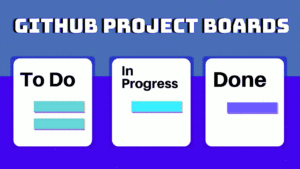
GitHub Issues track bugs, feature requests, and tasks with labels, assignees, milestones, and linked pull requests. The modern issue experience includes issue templates (standardized formats for bug reports and feature requests), issue forms (structured YAML-defined forms with validation), and task lists within issues for tracking sub-tasks. GitHub Projects provides a Kanban-style board that automatically syncs with issues and PRs, supporting custom workflows with status fields, iterations, and insights dashboards. Automations can move cards between columns based on label changes, PR merges, or scheduled dates, reducing manual board management.
# Using GitHub CLI to manage issues
gh issue create --title "Add dark mode" --body "Users have requested a dark theme..."   --label enhancement --assignee @me --project "Q3 Sprint"

gh issue list --label bug --assignee @me
gh issue view 42  # View issue details in terminal

# Link PR to issue automatically (mention in PR description)
# Closes #42 — PR will auto-close the issue when merged
GitHub Actions for CI/CD
GitHub Actions provides workflow automation triggered by GitHub events (push, PR, schedule, issue creation). Workflows are YAML files in .github/workflows/ that define jobs running on GitHub-hosted or self-hosted runners. Each job consists of steps that can run commands or use pre-built actions from the Marketplace. Common workflows include running tests on every push, deploying to cloud platforms on merge to main, publishing packages to npm or Docker Hub on version tags, and scheduled tasks like dependency updates or database backups.
# .github/workflows/ci.yml
name: CI
on: [push, pull_request]
jobs:
  test:
    runs-on: ubuntu-latest
    steps:
      - uses: actions/checkout@v4
      - uses: actions/setup-python@v5
        with: { python-version: "3.12" }
      - run: pip install -r requirements.txt
      - run: pytest --cov=src --cov-report=xml
      - uses: codecov/codecov-action@v4
  deploy:
    needs: test
    if: github.ref == 'refs/heads/main'
    runs-on: ubuntu-latest
    steps:
      - uses: actions/checkout@v4
      - uses: superfly/flyctl-actions@1.5
        with: { args: "deploy" }
        env: { FLY_API_TOKEN: ${{ secrets.FLY_API_TOKEN }} }
Code Review with Pull Requests
GitHub’s pull request interface supports inline code comments, suggested changes (one-click accept), draft PRs (mark work-in-progress without triggering CI), and required reviewers with branch protection rules. Review assignment can be automatic (code owners file, load balancing round-robin). Conversation resolution tracks when comments are addressed. The Checks tab shows CI status directly in the PR. Merge queues (GitHub Merge Queue) automatically test PRs in batches before merging, ensuring main is always green even with concurrent merges. For security-sensitive projects, CODEOWNERS can enforce that specific files require review from designated teams.
Security Features
Dependabot automatically scans dependencies for known vulnerabilities (from GitHub Advisory Database) and creates PRs to update them. Secret scanning detects exposed credentials (API keys, tokens, passwords) in repositories and alerts the security team. CodeQL analysis runs static analysis on every push, finding security vulnerabilities (SQL injection, XSS, path traversal) and code quality issues. SBOM (Software Bill of Materials) generation outputs a machine-readable inventory of all dependencies, helping with supply chain security compliance. These security features, combined with mandatory 2FA enforcement and SAML/SSO for organizations, make GitHub a secure platform for enterprise development teams.
GitHub Actions Advanced Patterns
GitHub Actions supports matrices (running the same job with different OS or language versions), reusable workflows (calling a workflow from another workflow, avoiding duplication), environments (with approval gates and secrets scoped to deployment targets), and composite actions (bundling multiple steps into a reusable action). For monorepos, paths filtering triggers workflows only when specific directories change. The concurrency group prevents duplicate workflow runs on the same branch. Workflow commands allow creating annotations, setting outputs, and updating the job summary from within script steps. Artifact and cache actions speed up builds by persisting dependencies between runs. For self-hosted runners, autoscaling with actions-runner-controller on Kubernetes provides enterprise-level capacity management.
# Matrix testing across Python versions and OS
jobs:
  test:
    strategy:
      matrix:
        os: [ubuntu-latest, macos-latest, windows-latest]
        python: ["3.9", "3.10", "3.11", "3.12"]
    runs-on: ${{ matrix.os }}
    steps:
      - uses: actions/setup-python@v5
        with: { python-version: ${{ matrix.python }} }
      - run: pip install . && pytest
GitHub Pages and Documentation
GitHub Pages hosts static websites directly from repositories, supporting Jekyll, Hugo, and plain HTML. Project pages (served from a gh-pages branch or /docs folder) provide free documentation hosting with custom domain support and automatic HTTPS. Pages integrates with Actions: build your static site generator, deploy the output to Pages, and invalidate the CDN cache automatically. GitHub Wikis provide collaborative documentation that anyone with repository access can edit, with version history and search. For API documentation, GitHub’s support for OpenAPI/Swagger renders specification files directly in the repository view. Combined with the GitHub REST API and GraphQL API, you can automate documentation generation and maintain a project website without leaving the GitHub ecosystem.